
Step 1: Log in to Your WordPress Dashboard
Log in to your WordPress admin dashboard using an administrator account.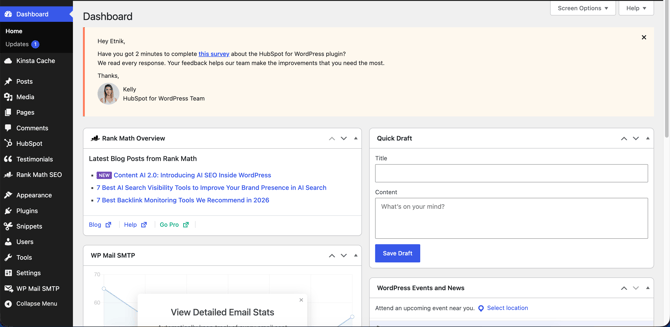
Step 2: Install the Plugin
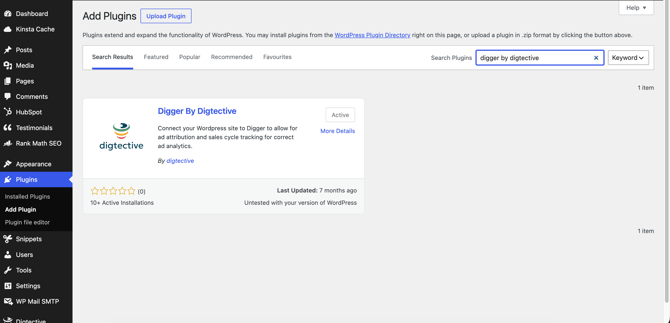
- In the left-hand menu, navigate to Plugins → Add Plugin.
- Search for Digger by Digtective.
- Click Install Now.
- Once the installation is complete, click Activate.
Step 3: Open the Digtective Plugin
After activating the plugin, you'll see Digtective in the WordPress navigation menu.
Click Digtective to open the plugin. Before you can activate it, you'll need to generate a Token Key from your Digger account.
Step 4: Generate a Token Key in Digger
- Log in to your Digger account.
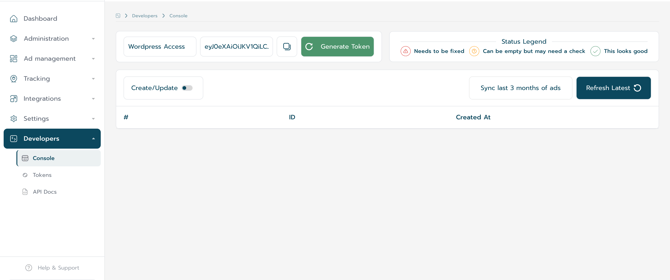
- From the navigation menu, go to Developers → Console.
- Enter a name for your token (for example, WordPress Website).
- Click Generate Token.
- Copy the generated Token Key.
Step 5: Connect Your Website
- Return to your WordPress dashboard.
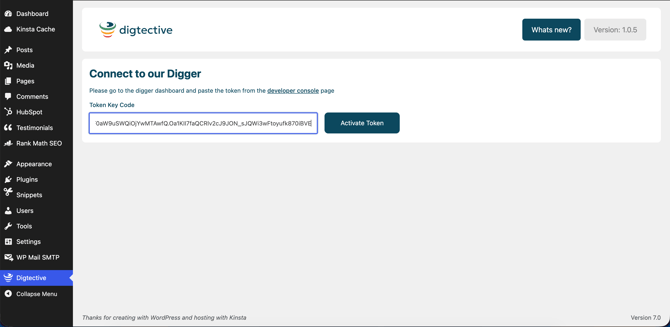
- Open Digtective from the navigation menu.
- Paste your Token Key into the activation field.
- Click Activate.
Step 6: You're All Set!
Your WordPress website is connected to Digger by Digtective.
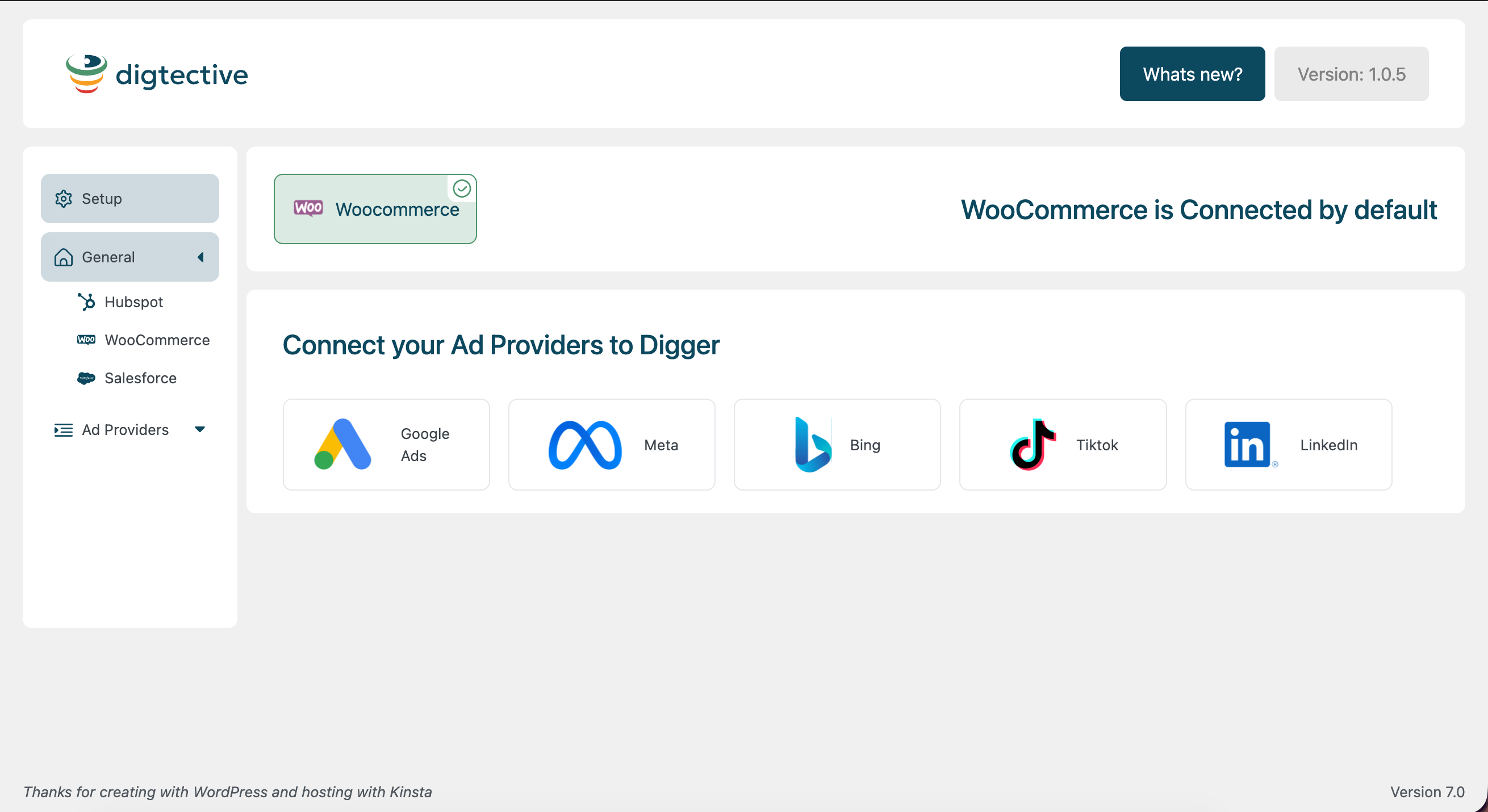
You can now move on to connecting your advertising platforms to start tracking your marketing performance.
Next Step: Connect other channels
Now that your WordPress website is connected, you'll need to connect your advertising accounts, e-commerce providers, CRMs to start tracking your marketing performance.
Continue with our setup guides for:
Once your ad providers or other channels are connected, Digger will begin collecting and displaying your advertising and conversion data.